
What is OCR?
Optical character recognition reads the letters in an image and produces editable text. Use it for a screenshot, a photographed page or a scanned PDF page when you want to copy a paragraph or reuse its contents.
QuickDataView calls this a “Premium extra · free for everyone”. It is completely free, with no subscription or sign-up. Recognition is optional and starts only when you choose it after opening a preview.
Try it with a picture
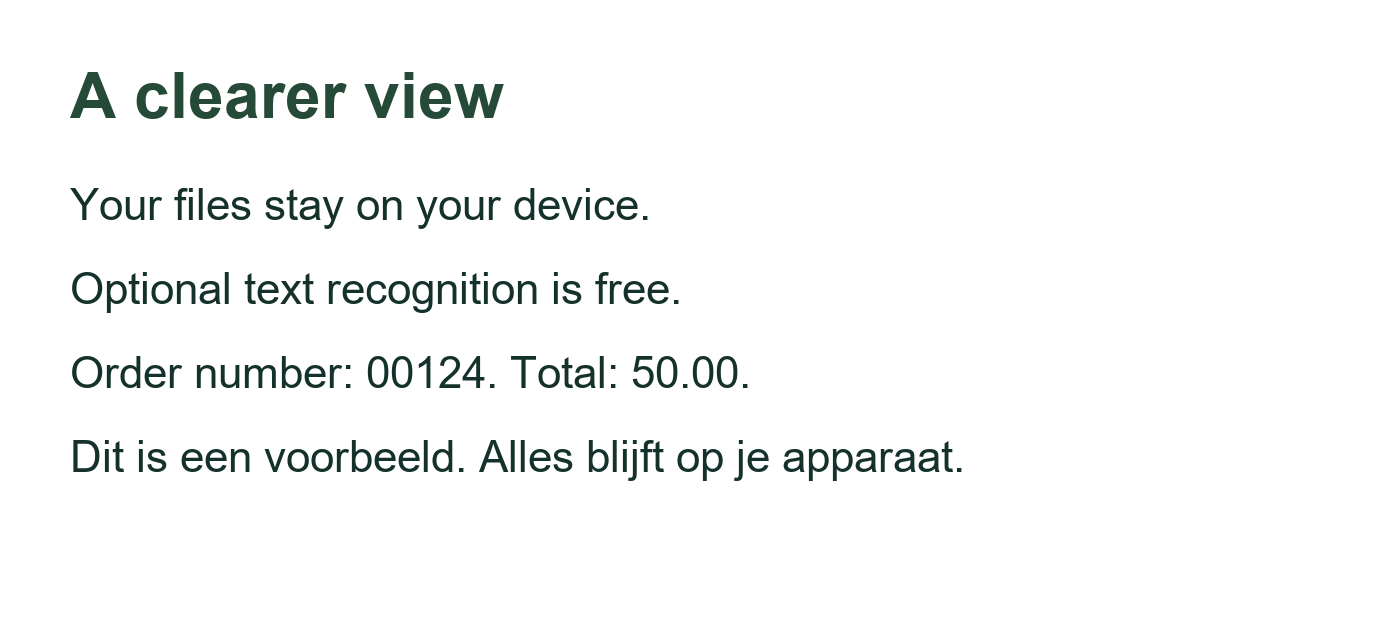
- Open QuickDataView and choose or drop a PNG, JPG/JPEG, WebP, GIF or BMP picture. To try a public example first, click Try free OCR.
- Check the picture preview. The Turn this preview into text panel appears underneath it.
- Choose English, Dutch or English + Dutch to match the text.
- Click Recognize text in this picture. Follow the progress, or click Cancel recognition whenever you like.
- Review the result against the picture. Correct it directly in the text box, then choose Copy text or Download text.
Use OCR on a scanned PDF
- Open the PDF and navigate to the page you want to read.
- If words are already selectable, try the normal Search PDF field first. Existing text may give you what you need immediately.
- For a scanned page, use the recognition panel below the page preview. Choose the language and click Recognize text on this page.
- Review, correct, copy or download the recognized text. To recognize another page, navigate to it and run the optional step again.
OCR works on one current page or picture at a time. Changing the page or file clears the previous result, so copy or download anything you want to keep first.
A little patience. Still private. Only on your device.
Recognition takes longer than simply displaying a file. The first run also loads the OCR engine and your chosen language files from QuickDataView. Detailed pages and slower phones or computers need more time. There is no fixed completion time; the progress display tells you how recognition is going.
Your browser does the recognition. Your picture, PDF page and recognized text are not uploaded or sent to a conversion service. Loading the website and its bundled engine makes ordinary web requests, but those requests do not contain your selected file. Read our privacy explanation for the details.
What do you get?
| Option | Result |
|---|---|
| Review and correct | Edit the recognized text in the result box. |
| Copy text | Place the current result on your device’s clipboard. |
| Download text | Save the current result as a plain .txt file. |
Your original file stays unchanged. This feature extracts text; it does not create a searchable PDF or add OCR results to document-wide PDF search. It does not process an entire folder or all PDF pages automatically.
Get a clearer result
- Use an upright, sharp picture with readable text and good contrast.
- Crop unnecessary background before opening the picture. Avoid glare and cut-off letters.
- Choose the language that matches the page. Use English + Dutch for a mixed-language page.
- Compare names, dates, order numbers and amounts with the original. A result that looks plausible can still contain mistakes.
Small, blurry or handwritten text can be harder to recognize accurately. Tables and columns may lose their layout in the plain-text result. If no text is recognized, try a clearer picture or a different language.
For more on existing PDF text layers and other OCR workflows, read Why can’t I search this PDF?
Credit to the format’s makers
Image-format communities make pictures portable. The PNG working group’s documented format and Google’s WebP project are examples of that engineering. QuickDataView uses your browser’s image support to give those files a convenient local preview.
Format reference: W3C’s PNG specification. Reference checked 7 October 2026. These links acknowledge the format; they do not imply endorsement or a partnership.