
Check whether the page contains text
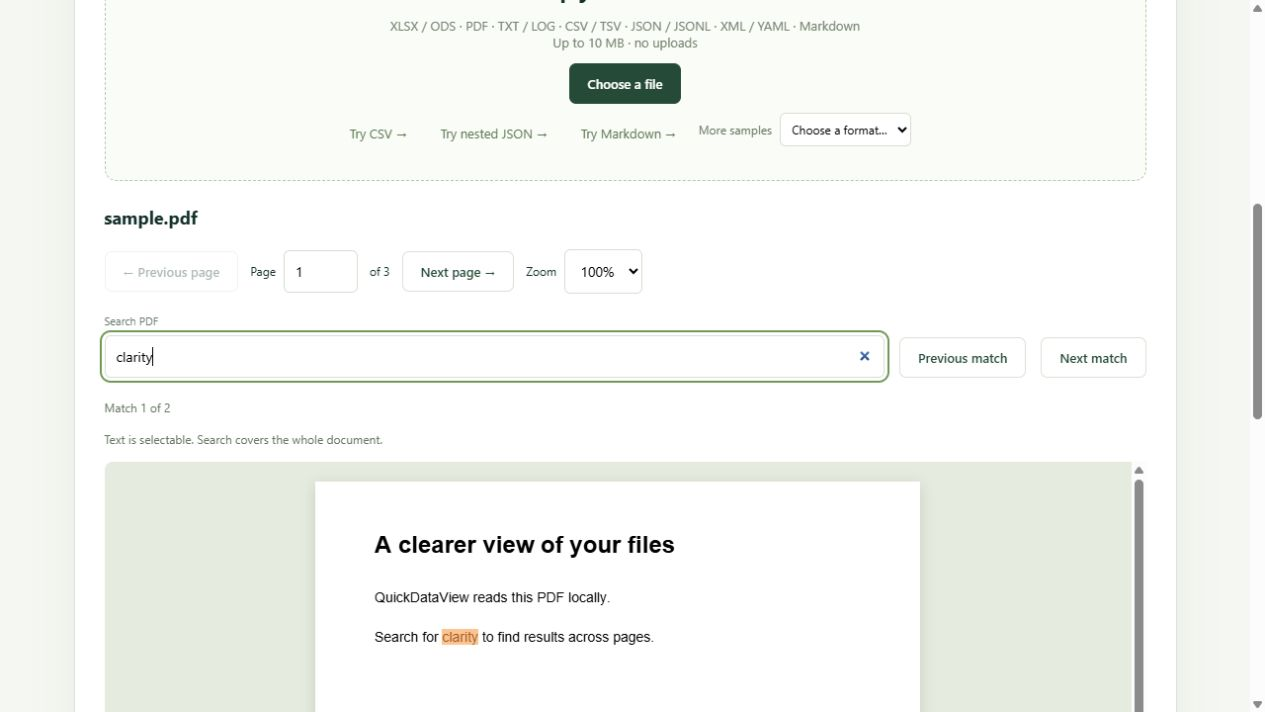
- Open your PDF in QuickDataView.
- Try to select a word, then search for a short, distinctive word that you can see on the page.
- Check another page. A PDF can mix scanned pages with pages containing actual text.
QuickDataView searches the document’s extractable text. If a page has no searchable text, it displays a message explaining that the page may be scanned. After the page preview, the optional “Recognize text on this page” feature can read a scan on your device. It is a premium extra, free for everyone.
Try the optional free next step
For a walkthrough with pictures and scanned pages, read Free OCR for pictures and scanned PDFs.
- After the PDF page preview, choose English, Dutch or English + Dutch.
- Click Recognize text on this page. The OCR engine and language files load only when you ask.
- Follow the progress or cancel whenever you like.
- Review and correct the result, then copy or download the text.
A little patience. Still private. Only on your device. Recognition takes longer than opening a file; the first run also loads the engine and models. Detailed pages and slower devices need more time.
You can also open PNG, JPEG, WebP, GIF and BMP pictures in the viewer. Display the picture first, then use the same optional recognition feature below it.
Recognition works on the current page or picture. It does not create a searchable PDF or add the result to document-wide PDF search. Your original file stays unchanged.
What OCR adds
Optical character recognition identifies letters in a page image and produces text. Some tools can also add a searchable text layer to a PDF. Recognition can be wrong: review names, dates and amounts against the original image.
Choose according to your workflow
| Need | Option | Tradeoff |
|---|---|---|
| Just read or search existing text | QuickDataView | Free, local; optional single-page OCR, no PDF editing |
| Process scans on your own machine | OCRmyPDF | Free open-source tool; installation and command-line setup |
| OCR plus PDF editing in a desktop workflow | Adobe Acrobat | Paid option; check plan features and renewal terms |
OCRmyPDF adds text layers to scanned PDFs. Follow its documentation for installation and language selection. It is a separate application, not a feature built into QuickDataView.
When a paid PDF tool makes sense
If you regularly need to edit PDFs as well as recognize scans, compare Acrobat’s current desktop features and plans. For occasional viewing, keep using a free viewer. Check where the chosen OCR feature processes files; QuickDataView’s local-processing promise applies to QuickDataView.
Explore Acrobat plans and features Provider link · no commission
Other reasons search can fail
A document may have broken font mappings, text converted to outlines, permissions that restrict extraction or an inaccurate OCR layer. Try a shorter word and another PDF reader before buying anything. QuickDataView caps document-wide search at five million extracted characters; check the viewer’s status message for a search limit.
Before buying a scanner
For a few pages, try your existing scanner or phone first. For regular batches, look for an automatic document feeder, duplex scanning, local saving and OCR software that suits your operating system. A new scanner is useful for a paper-heavy workflow; it is not required to read PDFs here.
Verify the result
For QuickDataView’s optional OCR, compare the recognized text with the preview before copying or downloading it. For an external tool that creates a searchable PDF, save a new file and reopen it here to check selection and search. Keep the original scan until you have checked the result.
References: Adobe’s OCR feature explanation and OCRmyPDF documentation. Product information checked 6 October 2026; verify current features before purchase.
Credit to the format’s makers
Adobe made PDF a practical way to share documents with their appearance intact. That work is worth celebrating: a portable document is useful precisely because its reader can choose how to open it.
Format reference: Adobe’s history of PDF. Reference checked 7 October 2026. These links acknowledge the format; they do not imply endorsement or a partnership.